Why Geometry Dash Eats Your Battery Alive — And What You Can Actually Do About It
Photo: Rolf Dietrich Brecher, CC BY-SA 2.0, via Wikimedia Commons
You sit down for what's supposed to be a quick practice run on a Demon-tier level. An hour later, your phone is hot enough to fry an egg and sitting at 12% battery. Sound familiar? You're not imagining things — Geometry Dash genuinely hammers mobile hardware in ways that most casual games never come close to. Understanding why that happens is the first step toward actually doing something about it.
The Real Reason GD Drains Power So Fast
Most mobile games are built around relatively forgiving performance targets. A puzzle game or idle clicker doesn't need to redraw the screen 60 times per second with pixel-perfect precision. Geometry Dash does — and that difference matters enormously for your battery.
At its core, GD runs on a relentless, high-refresh rendering loop. The game is essentially asking your GPU to produce smooth, consistent frames continuously, with zero tolerance for dropped frames because a single stutter can cost you a run you've been grinding for hours. That constant GPU workload pulls a significant amount of power all by itself.
But it doesn't stop there. The game's physics engine is also running calculations in real time — tracking your icon's position, velocity, gravity flips, collision detection, and portal transitions every single frame. On a level with dense obstacle layouts or heavy trigger sequences, those calculations stack up fast. Your CPU and GPU are effectively tag-teaming to keep everything synchronized, and both components are drawing current the entire time.
Add in the audio engine (GD's sync-to-music system isn't just for show — it's actively processing audio timing data), any background apps you haven't closed, and your screen brightness, and you've got a recipe for a battery that drops faster than your attempts on Bloodbath.
Heat Is the Hidden Multiplier
Here's something a lot of players don't think about: heat makes battery drain worse, not just uncomfortable. When your phone's processor gets hot, it has to work harder to maintain performance — a process called thermal throttling that actually increases power consumption even as it slows your hardware down. It's a frustrating feedback loop.
Geometry Dash is particularly good at triggering this cycle. The sustained GPU and CPU load generates heat steadily over time, especially on older or mid-range Android devices. If you're playing in a warm room, in direct sunlight, or with your phone sitting on a soft surface that traps heat underneath it, you're accelerating the problem significantly.
Practical Fixes That Actually Work
Dial Back the Graphics Settings
This is the single most impactful change most players can make. In GD's settings menu, you'll find options related to frame rate and visual quality. Dropping from 60fps to 30fps cuts your GPU workload roughly in half — yes, the game will feel slightly less smooth, but for practice grinding on a tough level, that tradeoff is absolutely worth it. You can always bump it back up when you're going for a record attempt.
If you're running a modded APK with enhanced visual options, check whether any particle effects or background rendering features are enabled. These look cool but they're surprisingly expensive on battery life.
Kill Background Apps Aggressively
Before you start a session, swipe away everything running in the background. Streaming apps, social media, anything with push notifications — close it all. Background processes compete for CPU cycles and network bandwidth, both of which add to your total power draw. On Android especially, some apps are notorious for waking up repeatedly in the background even when you're not using them.
Also consider enabling Do Not Disturb mode. Incoming notifications briefly light up your screen, interrupt your focus, and trigger small CPU spikes. None of that is helpful when you're 80% into a level.
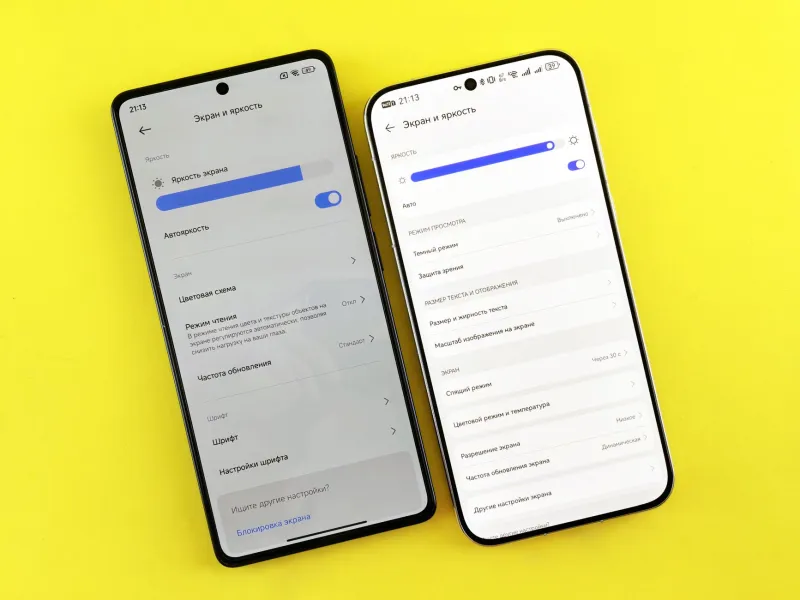
Lower Your Screen Brightness
Your display is one of the biggest battery consumers on any smartphone, and it's often overlooked. You don't need your screen cranked to full brightness to see Geometry Dash clearly — the game's visuals are high-contrast by design. Dropping to 50-60% brightness in a normally lit room can meaningfully extend your session without affecting gameplay at all.
If your phone has an AMOLED or OLED display, this matters even more, since those screens use more power to display bright colors and white backgrounds.
Keep Your Phone Cool
This one sounds obvious, but the execution matters. Don't play flat on your back with the phone resting on your stomach or a blanket — airflow around the device makes a real difference. A hard, flat surface is better. Some players swear by small clip-on phone coolers (they're cheap on Amazon and actually work reasonably well for extended sessions).
If your phone starts feeling genuinely hot to the touch, take a five-minute break. Not just for the battery's sake — thermal throttling will tank your frame rate and potentially cause stutters that cost you runs.
Use Battery Saver Mode Strategically
Most Android phones and iPhones offer a battery saver or low-power mode that limits background activity and caps CPU performance. For casual practice grinding, this can be a solid option — you're not trying to hit peak performance, you're just logging reps. Enable it, keep your brightness low, and you can stretch a session considerably longer.
Just be aware that on some devices, aggressive battery saver modes can introduce frame rate inconsistencies. Test it on your specific phone and see how GD responds before committing to it during serious attempts.
Check Your APK Version
If you're running a third-party APK of Geometry Dash, it's worth making sure you're on a recent, well-maintained build. Older or poorly optimized APK versions can have inefficient rendering code or memory leaks that cause the game to consume more power than it should. Grabbing a cleaner, up-to-date version from a trusted source can sometimes make a noticeable difference in battery performance.
The Bottom Line
Geometry Dash isn't draining your battery because your phone is weak — it's doing it because the game genuinely demands a lot from your hardware, consistently and without breaks. The good news is that most of the fixes here are free, take about two minutes to implement, and don't meaningfully compromise your gameplay experience.
Tweak your graphics settings, manage your background apps, keep your device cool, and you'll find that your sessions last a lot longer before you're scrambling for a charger. Your battery will thank you — and so will your completion percentage.